How to Make the Goodbye GTA 5 AI Video From One Photo
To make the Goodbye GTA 5 AI video you need one clear photo of yourself and a generator that follows the original pier clip. On GoodbyeGTA you upload the photo, pick the 15-second ending or the 29-second scene, and the video model is asked to put you in the traveler’s place while the three men, the pink car and the music follow the clip. It runs in a phone or desktop browser; one video costs from 429 credits (about $4.29), and the smallest pack is the $4.99 first-purchase trial.
Updated
Open the generator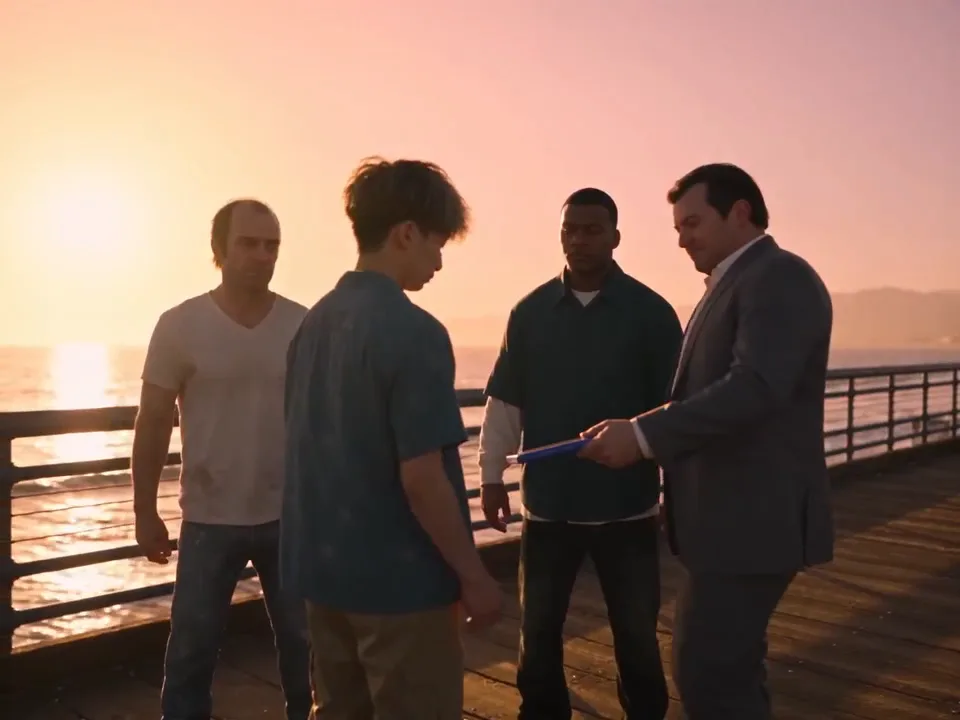
Make the Goodbye GTA 5 AI video in 5 steps
The Goodbye GTA 5 AI video takes five steps on GoodbyeGTA, from choosing a photo to posting the MP4, and none of them needs editing software, prompts or an app; the generator sends the original clip and a fixed prompt to the model for you.
Step 1: Pick one clear photo
Choose a photo of one person facing the camera in good light, ideally from the waist up so the model can see your clothes. A recent selfie works; group photos and heavy filters give the model less to go on.
Step 2: Open the generator and sign in
Go to the GoodbyeGTA homepage in any phone or desktop browser and sign in with Google or email. There is no app to install.
Step 3: Add the photo and choose the traveler
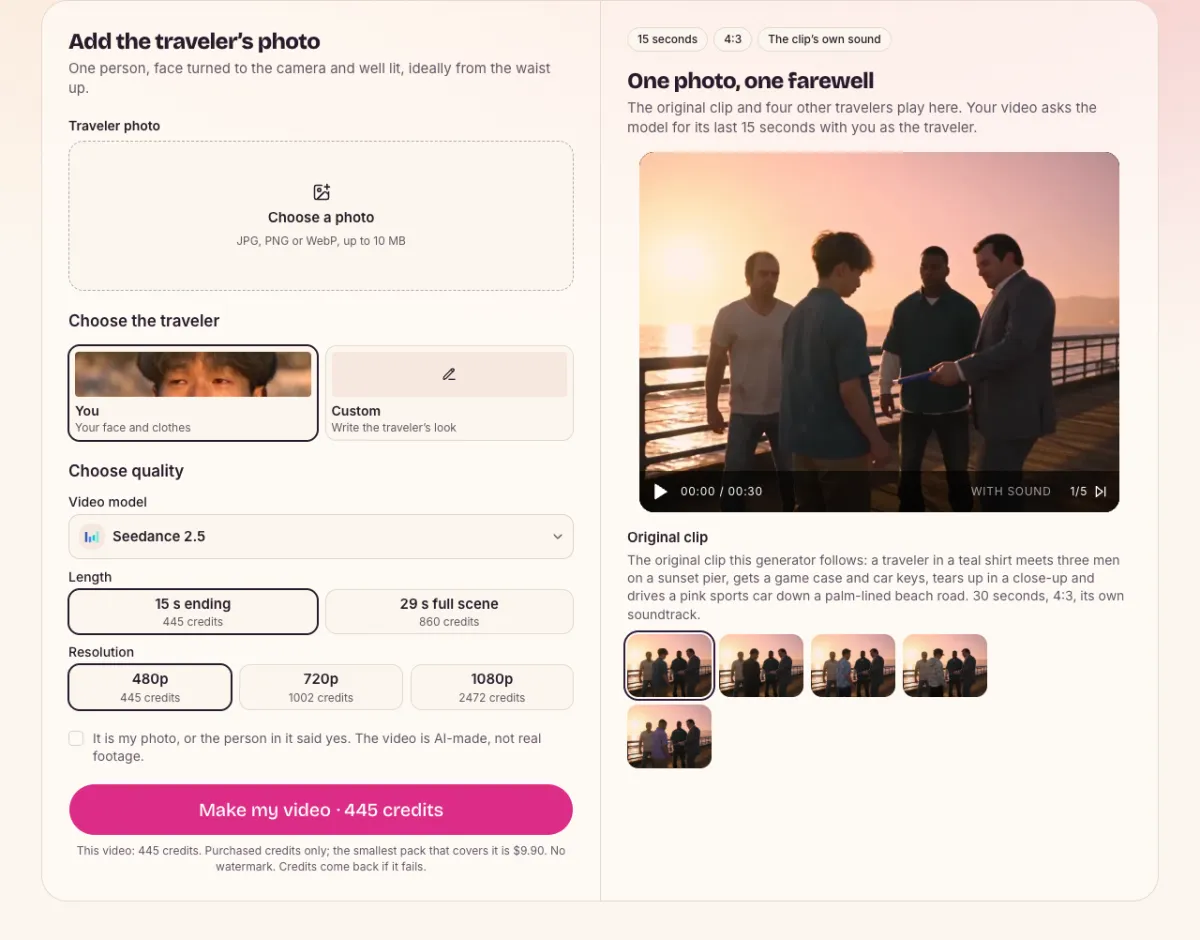
Upload the photo (JPG, PNG or WebP, up to 10 MB). Keep the You card to wear your own clothes, or pick Custom and describe a look, with an optional outfit picture.
Step 4: Choose the model, length and resolution
Seedance 2.5 does the 15-second ending or the whole 29-second scene at 480p, 720p or 1080p; MiniMax H3 does the 15-second ending at 768P and is the cheapest at 429 credits, which the $4.99 trial pack covers. The button shows the exact credits before you press it.
Step 5: Generate, download and post
The video takes a few minutes; you can leave the page and it keeps going. When it is ready, download the MP4 (4:3, with the clip’s own soundtrack, no watermark) and post it to TikTok, Instagram Reels or YouTube Shorts.
Which photo works best for Goodbye GTA 5 AI
The best photo for Goodbye GTA 5 AI shows one person facing the camera in even light, from the waist up, without filters. The model only knows your face and clothes from this one picture, so these are suggestions for giving it the most to work with, not rules the upload checks.
| Tip | Why it helps |
|---|---|
| Face turned to the camera | The close-up shot is the one people look at; a straight-on face gives the model the clearest reference. |
| One person only | With two faces in the photo the model may mix them; crop to yourself before uploading. |
| Even, bright light | Shadows and backlight hide features the model needs for the sunset close-up. |
| Waist up, not just a face | With the You card the prompt asks the model to keep your clothes; it can only keep what it can see. |
| No heavy filters or masks | Beauty filters, sunglasses and hats are copied as part of you if the model sees them. |
Goodbye GTA 5 AI: 15-second ending or 29-second scene?
Choose the 15-second ending if you want the emotional part people remember — the shoulder pat, the tearful close-up, the drive away — at the lowest price (from 429 credits). Choose the 29-second scene if you also want the pier meeting, the game case and the car keys; it needs Seedance 2.5 and starts at 860 credits.
Every model, length and resolution with its credits is listed in the Goodbye GTA 5 AI price table and on the pricing page.
Making the Goodbye GTA 5 AI video on an iPhone or Android phone
The Goodbye GTA 5 AI generator works in Safari, Chrome or any mobile browser, so a phone and one photo from your camera roll are enough. On iPhone, tap Download MP4 and then save the video from the Files download list to Photos; on Android the MP4 lands in Downloads and shows up in your gallery.
When the Goodbye GTA 5 AI result looks wrong
A Goodbye GTA 5 AI result can drift back to the original traveler’s face, change between shots or blur the hands; most of it comes down to the photo and the model. These are the usual problems and what to try next.
| Problem | What to try |
|---|---|
| Your face looks like the original traveler | Use a sharper, front-facing photo, or try the other model. This clip has real-looking people, so the old face can return in some shots; results vary by model and photo. |
| The face changes between shots | A photo with even light and no strong angle gives the model one clear face to follow through the wide shots, the close-up and the car. |
| Hands or keys merge when things change hands | Small objects in hands are hard for video models. The prompt asks for natural hands and one set of keys; a new attempt can come out differently. |
| Your outfit came out different | With the You card the prompt asks for the clothes in your photo, so show them; with Custom, describe the look in plain words or add an outfit picture. |
| The video was refused or failed | Refused photos and failed videos give the credits back automatically; try a different photo of yourself. |
Goodbye GTA 5 AI tutorial FAQ
How long does a Goodbye GTA 5 AI video take to make?
Usually several minutes, depending on the model and the length. You can close or reload the page; the video keeps going and shows up again on the page and in your account.
Does the Goodbye GTA 5 AI video have the original music?
Yes. The model makes a silent picture, and the soundtrack of the original clip is laid back under it before you download, for both the 15-second and the 29-second version.
Can a woman be the traveler?
Yes. The prompt uses no gender words and asks the model to copy the person in your photo, so anyone can be the traveler; the three men and the rest of the scene stay as in the clip. Results vary by model and photo.